Keeps devices alike
A change on one device—such as deleting a synced photo—may appear on every connected device. Sync can copy mistakes.
Protect family photos, documents, contacts, and devices with a simple plan you can check—not just a cloud icon you hope is working.
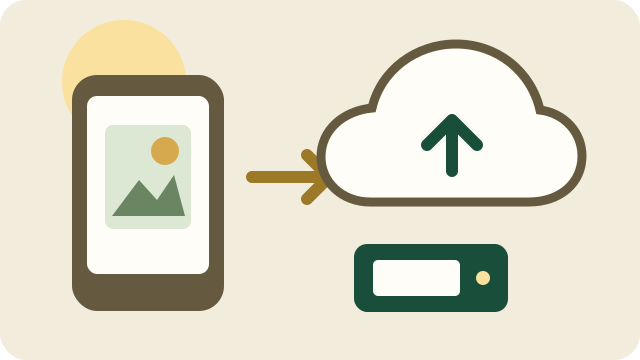
A change on one device—such as deleting a synced photo—may appear on every connected device. Sync can copy mistakes.
A backup is meant to restore information after a device is lost, damaged, erased, infected, or replaced.
An archive is a separate copy retained even if working files are reorganized or deleted. Family photos often deserve one.
iCloud Photos keeps an Apple photo library synchronized. Confirm the correct Apple Account and completed sync. Deleting from the library normally deletes from other synchronized devices, although Recently Deleted may allow limited-time recovery.
Google Photos can upload photos and videos to the selected Google Account. Check the profile picture and backup status before removing local copies or resetting a phone.
iCloud Backup saves device settings and information not already synchronized. Apple also supports encrypted backups to a Mac or Windows PC. Check the last successful date.
Android can back up supported app data, call history, contacts, settings, and messages. Photos are handled separately through Google Photos.
OneDrive or iCloud Drive can sync selected folders. Windows Backup and Mac Time Machine protect more of the computer. An external drive adds a valuable second copy.
| Service | Best fit | Usually handles | Important check |
|---|---|---|---|
| iCloud | Mostly iPhone, iPad, and Mac | Apple device backups, photos, contacts, messages, passwords, and iCloud Drive | Account, backup date, sync status, and storage |
| Android and mixed-brand users | Android backup, Google Photos, contacts, Gmail, and Drive | Account and Photos backup status | |
| OneDrive | Windows and Microsoft 365 | Desktop, Documents, Pictures, Office files, and selected folders | Cloud icons, account, storage, and folder selection |
| External drive | Anyone with irreplaceable files | Computer backups, exported photos, archives, and offline copies | Recent date and ability to open restored files |
The 3-2-1 rule means three copies, on two kinds of storage, with one copy away from the home. It does not need to be complicated.
The phone, tablet, or computer used every day.
iCloud, Google Photos and device backup, or OneDrive—configured and checked.
An external drive or exported archive that is not permanently connected.
Mark can check what is currently saved, organize photos, set up cloud and external backups, transfer data, and make a recovery plan you understand.
Call Mark: (951) 255-9814Reviewed November 3, 2026. Always confirm a completed backup before erasing or trading in a device.